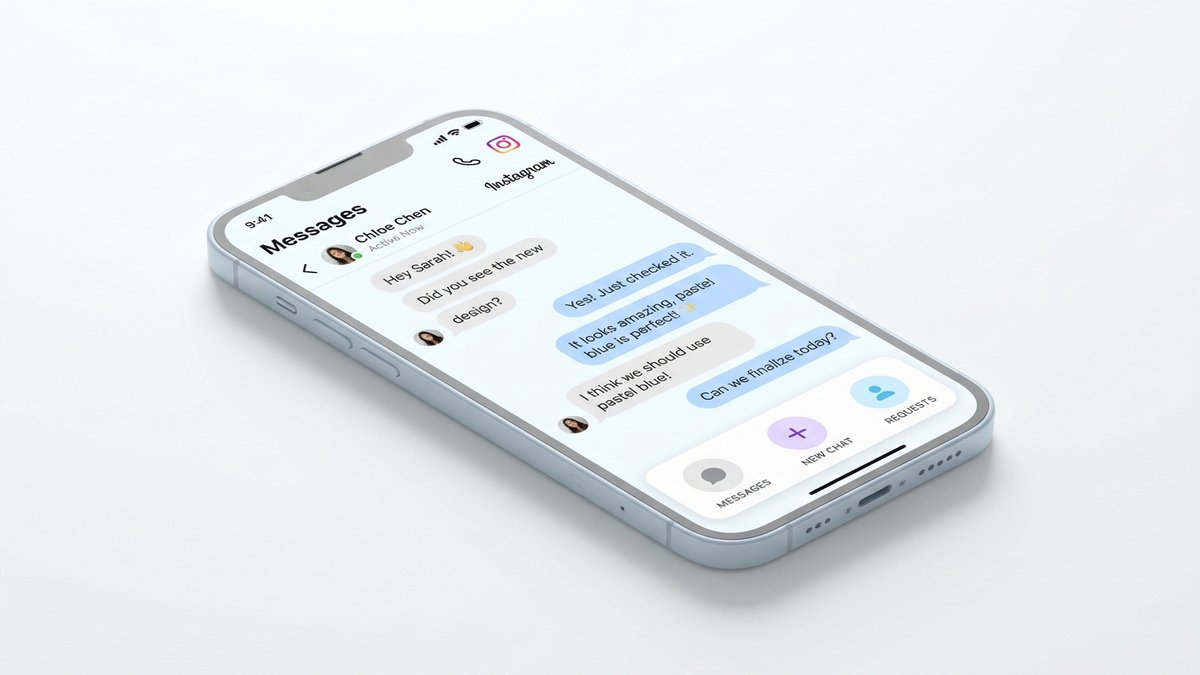
How to Set Up an Always-On Persistent Menu in Instagram DM
What Is a Persistent Menu and Why Is It Vital for Social Commerce?
Imagine visiting an e-commerce website that lacks a navigation header or search bar; visitors struggle to find products and quickly leave. An identical breakdown happens in direct messaging: once a conversational flow ends, leads drop off unless persistent navigation guides their next step.
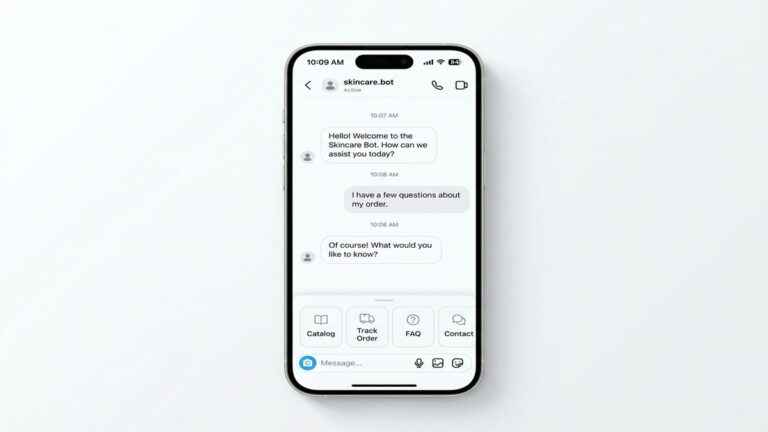
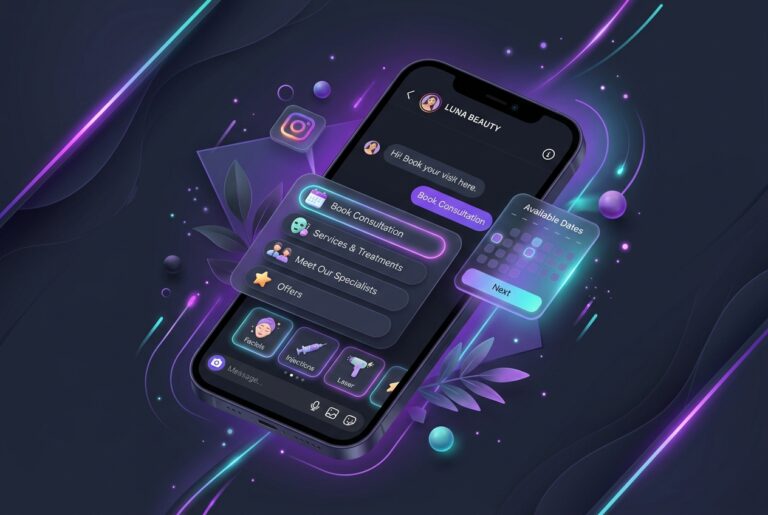
Meta introduced the official **Persistent Menu** to solve this friction. Fixed alongside the message input box, this hamburger-icon menu gives shoppers 24/7 one-tap access to your digital catalog, order tracking portal, website, and support contact.
Comparison: Standard Chat vs. Persistent Menu Equipped Inbox
| Navigation Metric | Standard DM Thread | Odirect Persistent Menu Active |
|---|---|---|
| Navigation Discoverability | Requires scrolling up past hundreds of messages | Permanently anchored at bottom of screen |
| Re-engagement Simplicity | Customer must recall exact trigger keywords | Instant button tap with zero typing effort |
| Brand Presentation | Informal text chat appearance | Full-featured mobile application storefront experience |
Step-by-Step Configuration in Odirect
- Access Persistent Menu Settings: Navigate to the navigation management tab in your Odirect dashboard.
- Select Up to 3 Key Menu Options: High-impact options typically include “Shop Collection 🛍️”, “Track Order 📦”, and “Official Site 🌐”.
- Assign Action Routing: Configure each button to open an SSL web URL or trigger an automated conversational workflow.
- Save and Publish: Sync changes instantly with Meta’s Graph API servers to deploy the menu across your audience.
Frequently Asked Questions
Is a minimum follower threshold required?
No. Every Instagram Business or Creator account connected to Odirect can enable the Persistent Menu regardless of follower count.
Can the menu options be modified anytime?
Yes. You can update menu labels and URLs at any time, and changes synchronize globally in real time.
Practical implementation roadmap
To put “How to Set Up an Always-On Persistent Menu in Instagram DM” into practice, define the problem in the customer’s language and separate verified information from details requiring human review. This boundary prevents unsupported promises and clarifies which answers can be reused. Match the entry point to real customer behavior; do not force unrelated needs into one journey.
1. Record a baseline
For several days, record sample questions, required answers, and cases that need an operator. Keep personal information out of shared templates. Group questions into a few needs and note the approved reply, review owner, and last-checked date. This makes later comparison more reliable than relying on impressions.
2. Design a clear path
Write a concise opening reply for each need that directly answers the question. Label choices precisely and remove redundant options. Make the next step explicit: view details, choose a product, or contact support. A link should lead to a relevant destination and work on mobile. Read the copy from the perspective of a first-time visitor.
3. Test before enabling
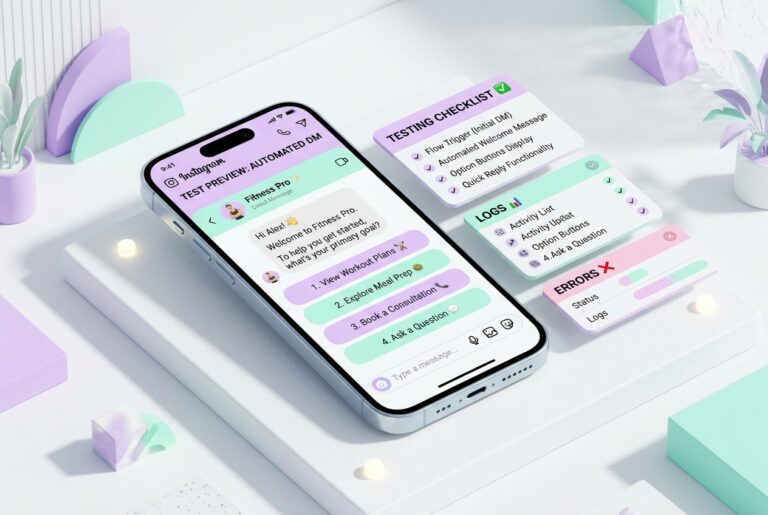
Use a test account to check the main phrase, common variations, similar but unrelated input, repeated messages, and every button. Follow the journey end to end to find duplicates or dead ends. Test comment and Story-reply entry paths separately where relevant, and record the results.
Measure quality and decide what to improve
Connect measures to the goal: did customers find the answer, repeat the question, use the next link or option, or need human help? Compare equivalent periods and note simultaneous changes such as campaigns or holidays. If clicks are low, review the destination and clarity of the action; if questions repeat, the reply may be incomplete. Do not generalize from a small sample.
Pre-launch quality checklist
| Area | Control question | Correction |
|---|---|---|
| Accuracy | Is the information approved? | Review and set next check date |
| Clarity | Is the next step obvious? | Simplify copy or button |
| Trigger fit | Does input match this reply? | Narrow and test examples |
| Exceptions | Can customers reach a person? | Add a clear handoff |
Preventable mistakes
- Do not promise prices, stock, or delivery without a reliable source.
- Do not send one long reply for several different needs.
- Do not publish vague buttons or unchecked links.
- Test a first-time visitor’s experience, not only the account owner’s.
- Do not measure success by message count alone; review answer quality and follow-up.
Illustrative example and limits
Imagine a business receives a recurring question on “How to Set Up an Always-On Persistent Menu in Instagram DM”. The team gathers approved information, divides the reply into short parts, and creates clear options for distinct requests. It then tests the flow and revises unclear or incomplete steps. This illustrates a process, not a measured result or guarantee of sales growth; outcomes depend on the product, information quality, and customer behavior.
Review and maintain the content
Turn feedback into observations: which phrase was unclear, where did customers leave, what did they ask again, or which link did they not open? Look for causes in copy, journey design, or outdated information. Keep the prior version and change date so it can be restored if the experience worsens. Approve updates to prices, delivery, products, or account policies with the responsible owner. Assign each flow a review owner and next review date.
Related reading
For the next step, see these guides: Instagram DM Automation vs. Link in Bio: Conversion Analysis How to Create High-Converting Button Templates in Instagram DM How to Deliver Video Guides via Automated Direct Messages How to Configure IceBreakers for Instant FAQ Responses
2 Comments